
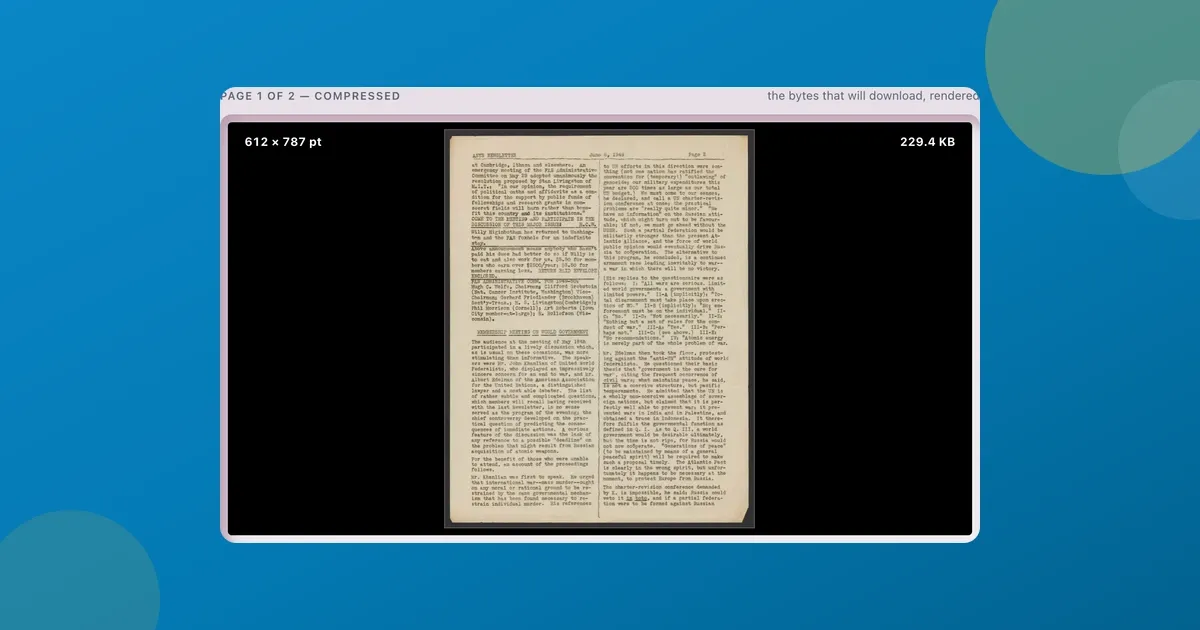
A friend texted me on a Sunday night, half-panicking. She was applying for a flat, and the rental portal wanted her last three payslips as one PDF, under 2 MB. Hers was nine. She’d already found a “compress PDF” site, uploaded the file, and was watching the progress bar when she stopped and asked: “this is fine, right? it’s got my salary and my account number on it.”
It isn’t, really. I wouldn’t call it a disaster every time, but I wouldn’t do it with a payslip. And it’s such a common trap, because the documents too big to email are almost always the ones you’d least want sitting on a stranger’s server: payslips, bank statements, a scanned signed contract, ID proofs. Uploading those to the first search result is precisely the wrong instinct.
So here’s how I deal with it instead, and why.
Why these are the PDFs that bounce
A bank statement is a few kilobytes of text wrapped around a logo and, if you scanned or photographed it, full pages saved as phone-camera-resolution images. The words weigh almost nothing. The pictures are the whole problem. That’s also the good news. Bring the images down to a sane size and the file drops hard while the text stays exactly as it was.
What the email limit actually is
The error messages are vague, so a quick reality check. Gmail caps attachments at 25 MB. Outlook.com is lower, around 20 MB. And there’s a catch nobody mentions: attachments are re-encoded for transit and travel about a third larger than the file sitting on your disk, so a 20 MB PDF can trip a 25 MB limit. Plenty of company mail servers also quietly cap what they’ll accept. Treat “under 25 MB” as “comfortably under 20.”
Shrink it without uploading it
Here’s the part that matters for a payslip: you don’t have to send it anywhere to make it smaller. ToolsTray’s Compress PDF does the whole thing in your browser. It opens the file on your device, re-encodes the images inside it, and rebuilds a lighter copy locally. Nothing leaves the tab. Drop the file in, leave it on Balanced (it’s already picked), press Compress PDF, download. The text stays sharp and selectable because only the images are touched, and that separates it from tools that “compress” a PDF by flattening every page into a single picture.
Compress PDF
Compress a PDF by re-encoding the pictures inside it, down to a KB ceiling if a form demands one. Text stays sharp.
When the form wants 100 KB
The nastier version is the government form or job portal with a hard ceiling of 200 KB, sometimes 100 KB. I built the Target size option for exactly that, after a form rejected a scan of mine for being 240 KB without so much as hinting how far over the line I was. You type the limit, and the tool tries five strengths against your file and keeps the best-looking one that still fits. If the file simply can’t get there, you still get the smallest version, along with how far over the limit it landed.
What an upload leaves behind
For a meme PDF, who cares where it gets compressed. For a document with your salary, account number, and home address on it, that’s the entire question. A file you upload sits on someone else’s server, in their logs, under their privacy policy, for however long they keep it. Processed on your device, it never crosses the network. There’s nothing to leak.
When compressing won’t help
Honestly, it won’t rescue every file. A PDF that’s mostly text has almost no image data to drop, so a plain letter or a generated invoice will barely move, and the tool tells you so rather than pretend. It also never hands you a file bigger than the one you started with: it keeps your original and suggests the Strong level instead. If you’re still over the limit, split it and send two emails, or rebuild it from fewer pages. And yes, a heavy cloud service with aggressive downsampling might squeeze out a little more than an on-device tool can. For a bank statement, that’s not a trade I’d make.
My friend’s payslips went from nine megabytes to about six hundred kilobytes in a few seconds, never left her laptop, and the portal took them on the first try. Good enough for a Sunday night.
Read next
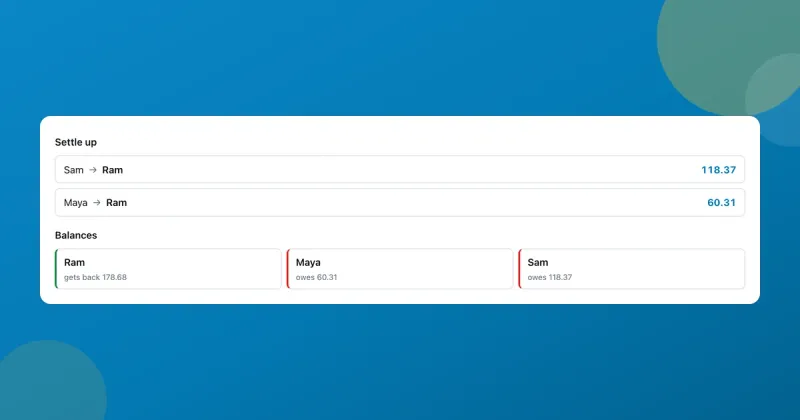 Students
A free Splitwise alternative with no app and no account
A free Splitwise alternative that runs in your browser: log who paid what, split a restaurant bill by item, and settle the whole trip in the fewest payments.
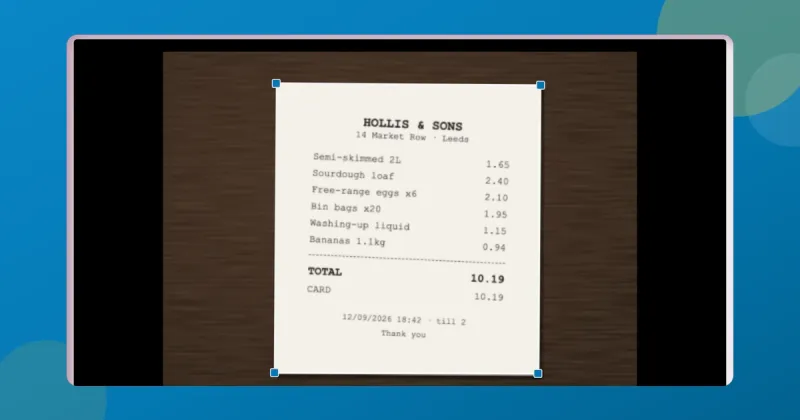 Office Workers
Scan documents to PDF free without installing an app
Scan documents to PDF free with your phone or laptop: auto edges, straightening, a clean-up eraser, searchable text. All in the browser, nothing installed or uploaded.
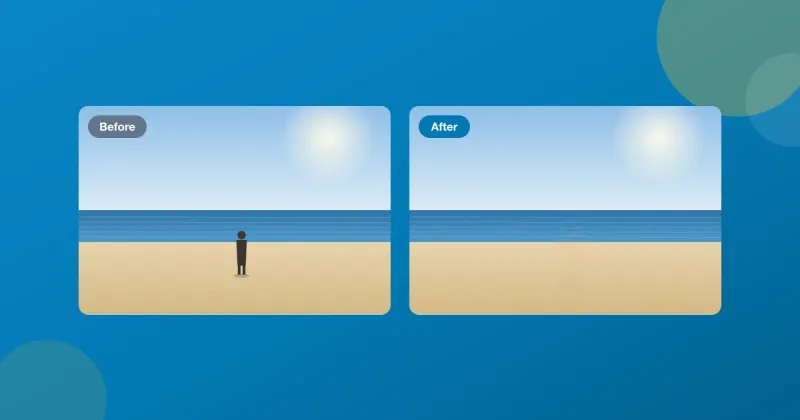 Content Creators
Remove an object from a photo for free, without uploading it
Remove an object or a person from a photo, free, in your browser. Brush over it and an on-device model fills the gap. No account, no watermark, nothing uploaded.