
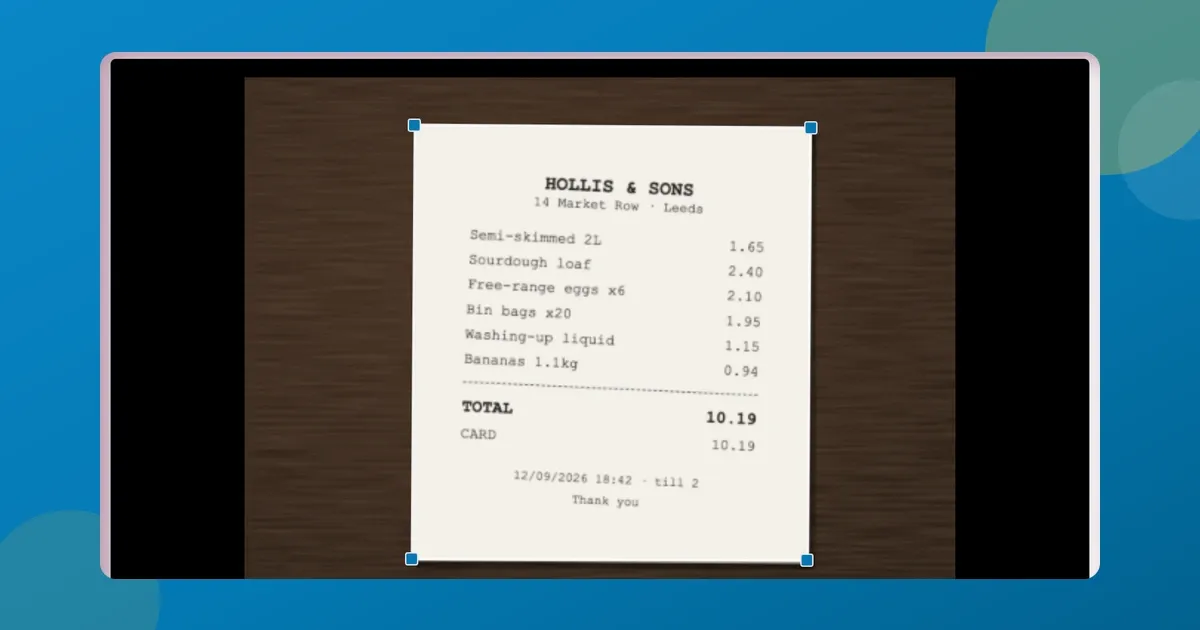
Someone sends you a form with “please scan, sign, and return” in the subject line, and you don’t own a scanner. You probably haven’t for years. So you photograph the signed page with your phone, and what comes out looks nothing like a scan: half your desk in the frame, the page leaning at an angle, a shadow across one corner.
You can scan documents to PDF free without fixing any of that by hand. Point your phone (or drop the photos in on a laptop), and the page comes out cropped, flattened, and upright, stacked into one PDF. I built ToolsTray’s document scanner to do exactly this in the browser, so that’s what this guide uses. I’ll show you the real output, artifacts and all.
Prefer to watch? The whole run is under ten seconds:
From phone photo to finished PDF
The routine is short.
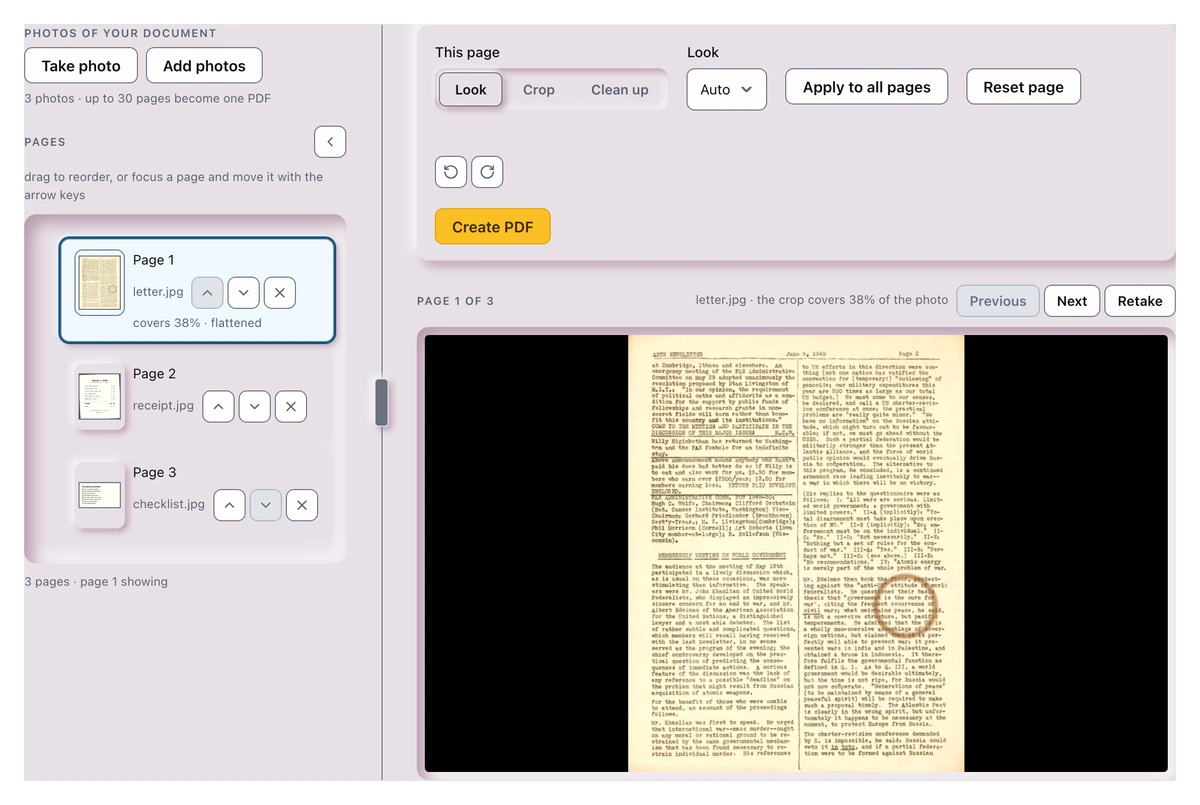
- Open the scanner and tap Take photo. On a phone that opens the camera straight away; on a computer, Add photos takes the ones you already have. Every shot becomes a page in the list on the left, and the one you pick fills the preview beside it.
- Look over each page. The scanner finds the paper’s edges, crops the desk away, squares the angle and takes out a small tilt by itself. You only step in when a page needs something: a different look, a corner nudged, a mark brushed out.
- Press Create PDF, then Download PDF. Tick Make the text searchable (OCR) first if you want to copy and search the words later.
Three shots in. The newsletter page is already cropped to its edges and squared up; the list says the crop kept 38% of the photo.
For this post I ran three shots through it: a typed newsletter page from 1949 with a coffee ring on it, a till receipt whose print had gone on slightly crooked, and a moving-out checklist. The receipt’s lines leaned a couple of degrees inside the paper, which no corner-drag fixes, and the scanner caught it and said so: “Fixed 2.3°”. The finished three-page PDF came out at 621.6 KB from 1.2 MB of photos, 48% smaller than what went in.
To be fair: your phone may already have a scanner hiding in it. Notes on iPhone and the Google Drive app on Android both scan documents, and they’re decent. Where the browser version earns its place: nothing to install, which helps on a work laptop or anyone else’s machine, no account, and no watermark stamped across your page (looking at you, CamScanner). It also gives you things the built-ins don’t: per-page looks, a clean-up eraser, and a target file size for forms with upload limits.
When the crop needs your help
Auto-detection works when the paper stands out from the background. A white sheet on a pale desk can fool it. That limit is real, so the corners are always yours to drag, or to nudge with the arrow keys once a corner has focus. A magnifier floats just above the corner while you drag, so on a phone your own finger never hides the spot you’re aiming at. And if you want the photo kept exactly as shot, switch off Flatten & straighten for that page.
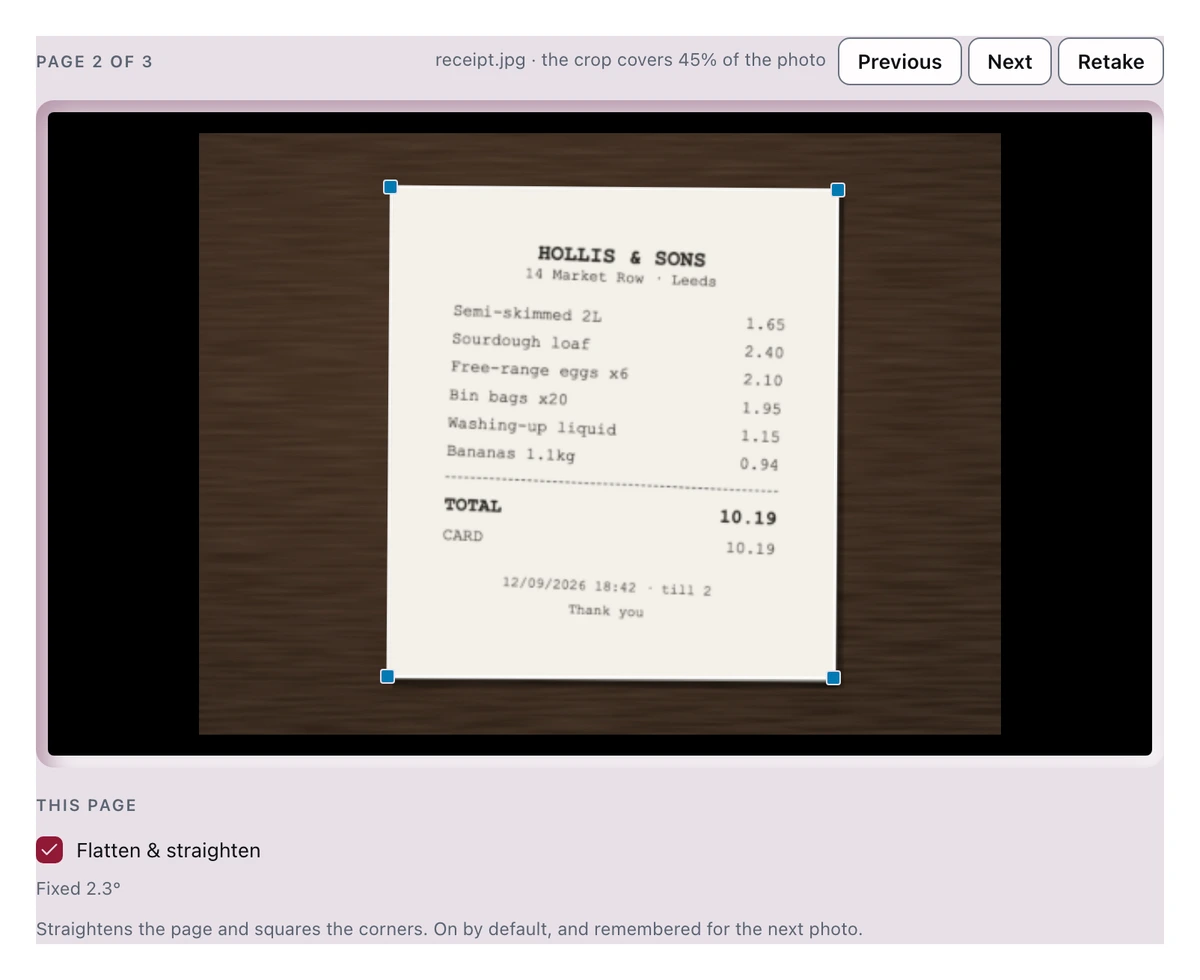
Crop mode shows the photo as taken, corners and all. Under it, Flatten & straighten reports the tilt it took out of the print.
Erasing the coffee ring
My favourite part, and the one that taught me the most. The newsletter page had a coffee ring sitting right across the second column, so I switched the page to Clean up, brushed over the ring, and pressed Erase selected. A small model repaints the brushed area from what surrounds it. The 30 MB model downloads the first time and stays cached, so later erases work offline.
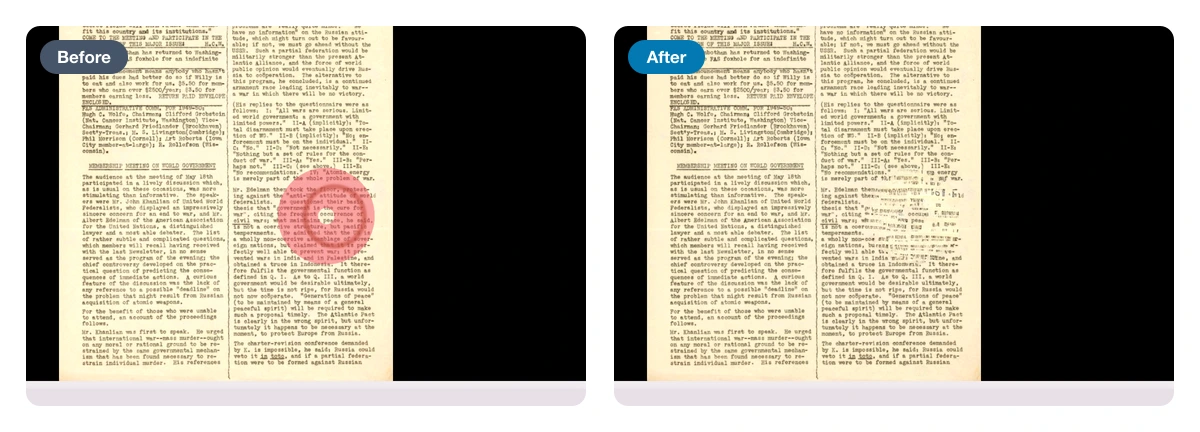
The ring is gone. So is a clean read of the lines it sat on, which is what happens when the brush crosses dense type.
That’s the caveat in one picture: the eraser is at its best on marks over plain paper. Over dense print it invents something that looks like type and isn’t. On a margin or a blank stretch it’s close to invisible; on a column of text I’d rather keep the ring. Undo erase puts the page back exactly as it was.
Your documents stay on your device
Everything the scanner does happens inside the browser tab on your own hardware: edge detection, the perspective math, the looks, the eraser, even the OCR. None of your pages is transmitted, to me or anyone else. The one thing that does cross the network is the recognition engine itself. The browser fetches it the first time you switch OCR on and keeps it on the device after that. For the things people actually scan (signed contracts, ID cards, bank letters, medical forms) I’d argue that’s the whole point. Most online scan tools work by uploading your pages to their servers first; here there’s no server in the loop to trust.

My three-page run: 1.2 MB of photos became a 621.6 KB PDF. Download JPGs writes the pages out as images instead.
What straightening and OCR won’t rescue
- Straightening only goes so far. It takes out the small tilt of an unsteady hand or a crooked print, up to about seven degrees. A page photographed from a sharp sideways angle gets fixed by the corner crop instead, and a curved book spine stays curved.
- Handwriting isn’t recognized. The searchable-text layer reads printed text in six languages; a handwritten page is captured perfectly well as an image, but you can’t search it.
- Very high-megapixel shots get scaled down before processing so phones don’t run out of memory. For documents that never matters in practice; for fine-print forensics it might.
If your scan’s job is really getting the text out rather than making a PDF, the OCR tool does that directly. If a portal rejects your finished PDF for size, compress it the rest of the way, and there’s a whole guide on getting under 1 MB. And when you just want photos bundled into a PDF untouched (whiteboards, book pages, slides), image to PDF skips the scan processing entirely.
Document Scanner — Photos to Clean PDF
Scan paper with a phone camera and get back a straight, readable multi-page PDF: auto edge detection, per-page looks, a stain eraser, optional searchable text.
Read next
 Students
A free Splitwise alternative with no app and no account
A free Splitwise alternative that runs in your browser: log who paid what, split a restaurant bill by item, and settle the whole trip in the fewest payments.
 Students
Transcribe audio to text free, on your device
Transcribe audio to text free in your browser: a lecture, a meeting, a voice memo. Timestamps, SRT and WebVTT export, and nothing leaves your device or asks for an account.
 Students
Extract text from a scanned PDF with a neural OCR engine
Extract text from a scanned PDF or a photo of a page, free. Choose Classic or the neural Sharp engine, then copy the words or take back a searchable PDF.