
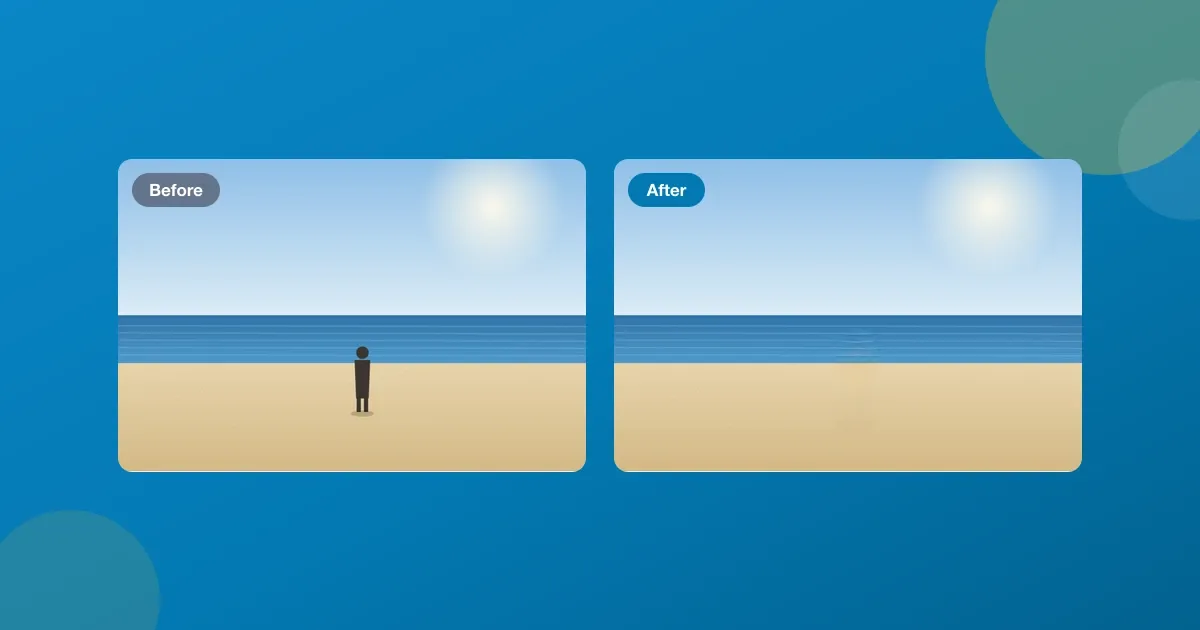
There’s a stranger standing in the background of an otherwise perfect beach photo. You’ve seen the fix advertised a hundred times (brush over the thing, watch it vanish), but the tools that do it well want a subscription, and the free ones stamp a watermark across your picture or upload it to a server first.
You can remove an object from a photo free, in a browser tab, with nothing uploaded. I built ToolsTray’s object eraser around a small AI model that runs on your own device. Brush over what you don’t want and it repaints the gap from the surrounding pixels. Here’s a real erase, including the part where it isn’t perfect.
Paint the mask, press Erase selected
- Drop your photo into the eraser.
- Set the brush size and paint over the thing you want gone (a person, say, or a power line). Missed a spot? Paint more. Overshot? Unpaint scrubs it back.
- Press Erase selected. The gap gets filled in and a before/after slider lets you check it. Download when you’re happy.
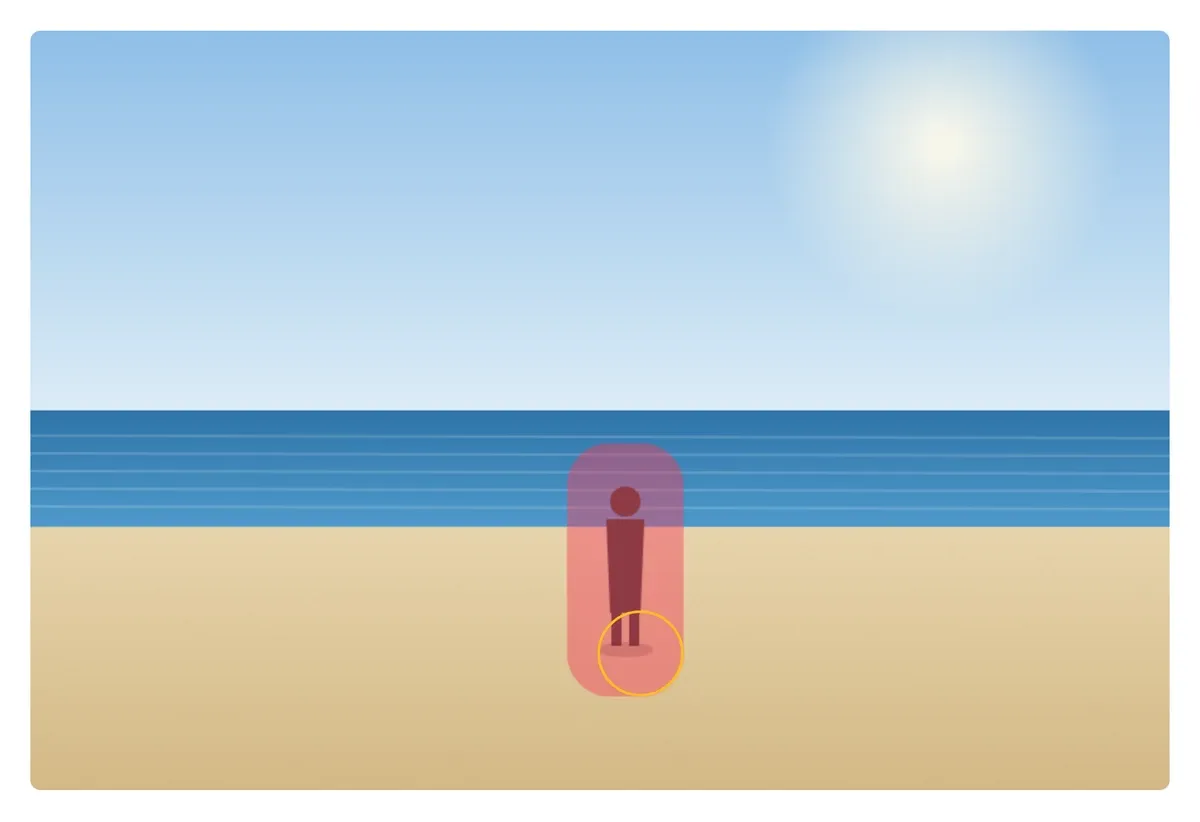
Paint over what you want gone. The pink marks exactly what will be removed, and the circle is the brush.
The erase itself
Once the mask is painted, one tap does it. A model called MI-GAN reads the pixels around your brush stroke and fills the gap with what it thinks belongs there. It downloads once, about 30 MB, and after that the eraser works with the network off.
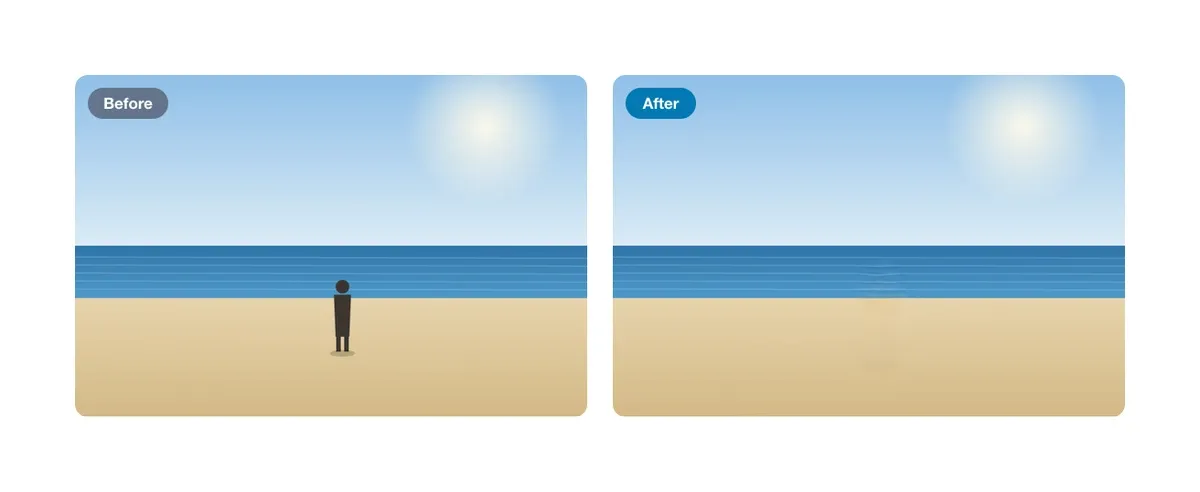
Before and after. The figure is gone and the sand and sea close over the gap, apart from one honest imperfection (more on that below).
Look closely at the “after” where the person’s feet met the waterline: there’s a faint smudge along that edge. That’s the honest bit. The eraser is at its best filling plain-ish areas. Where your object crosses a hard boundary or sits over fine detail, the fill can leave a soft trace. On a busy background it’s more visible than this.
Where it shines, and where it doesn’t
It’s genuinely good at: photobombers on a clean background, a trash can on grass, a stray sign in the sky, a blemish on a wall, a date stamp in a corner. Give it a plain neighbourhood to copy from and you often can’t tell anything was there.
It struggles with: anything overlapping a person you want to keep, reflections, repeating patterns like tiles or brick, and very large removals where there’s not much real background to learn from. For a big, complex object it can invent something plausible-but-wrong rather than admit defeat. When that happens, smaller brush strokes and a couple of passes beat one huge selection.
What happens to your photo
Nothing, is the short answer. The whole thing (the model, the brushing, the fill) runs inside your browser tab on your own hardware. The photo is never uploaded, to me or anyone, and there’s no watermark and no account. Most free “magic eraser” sites do the fill by sending your image to their servers, which is worth remembering when the photo is of your kid or your home.
When the fill shows
- Best on plain backgrounds. Sky, water, sand, a blank wall: the fill there is close to invisible. Busy or high-detail areas can leave a trace that needs a second pass.
- Not a replacement for a person. It removes things. It can’t convincingly rebuild a face or a hand that your object was covering.
- The first run downloads the model. About 30 MB, once, then cached and available offline.
- Very large removals are a gamble. The more real background it can see, the better it guesses. Erasing most of the frame gives it little to work with.
If what you actually want is to cut the subject out rather than clean up around them, the background remover does that instead. And once your photo’s clean, the image compressor gets it down to a sensible size for sharing.
AI Object Remover — Magic Eraser
Remove a photobomber, a bin or a stray cable from a photo. Tap it, circle it or paint over it, see how much of the frame it takes, and MI-GAN fills the gap.
Read next
 Content Creators
Reduce image file size when the upload box says 2 MB
What I actually do to reduce image file size on a phone photo: Smart compression, a KB target when a form demands one, and the max width that beats both.
 Students
A free Splitwise alternative with no app and no account
A free Splitwise alternative that runs in your browser: log who paid what, split a restaurant bill by item, and settle the whole trip in the fewest payments.
 Office Workers
Scan documents to PDF free without installing an app
Scan documents to PDF free with your phone or laptop: auto edges, straightening, a clean-up eraser, searchable text. All in the browser, nothing installed or uploaded.