Take a photo at home, send it to someone you met online last week, and the file can quietly carry the exact spot where you were standing. Your front door, pinned to within a few metres. The picture shows none of that. The camera writes a second block of data next to the image, and it travels with the file wherever you send it. Here is how to remove location data from a photo, and how to see what you’re taking out first.
I built ToolsTray’s EXIF viewer. It reads that block, prints it as a table, and then leaves you two exits: cut the metadata out wholesale, or keep it and blank the coordinates.
See it before you strip it
- Open the EXIF viewer and drop in a JPEG or PNG. A Take photo button sits beside the picker if you’d rather test the phone in your hand.
- Read the table. Camera make, Camera model, Software, Date taken, and if the camera had a fix that day, a GPS location row written out to six decimal places with an “(open map)” link after it. Click it once. Google Maps shows you what the file has been handing to strangers.
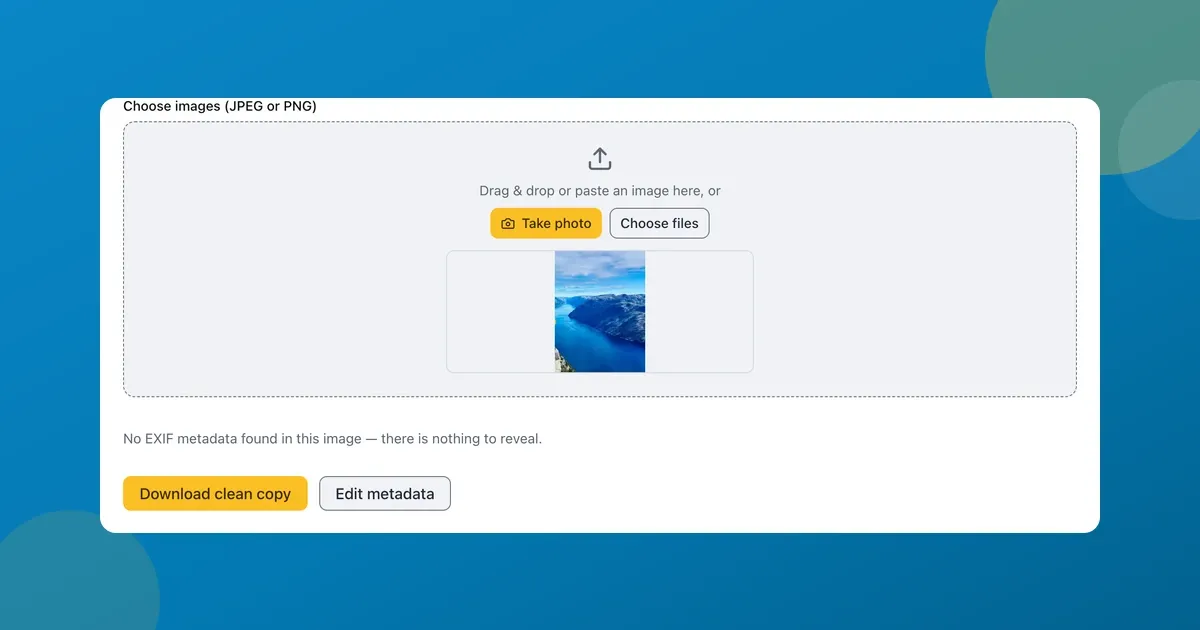
- Under the table are two buttons. Download clean copy returns the photo with the metadata removed, named after the original with
-cleanbefore the extension. For a JPEG, Edit metadata sits right next to it.
That second button is the one I reach for. It opens a form pre-filled from the file, with a box each for Camera make, Camera model, Software, Artist, Copyright, Description, Date taken, GPS latitude and GPS longitude. Empty the two GPS boxes and press Download edited copy. Back comes a file with -edited in the name, its location tags gone and the camera and date untouched. Type real numbers in instead and you move the pin rather than deleting it.
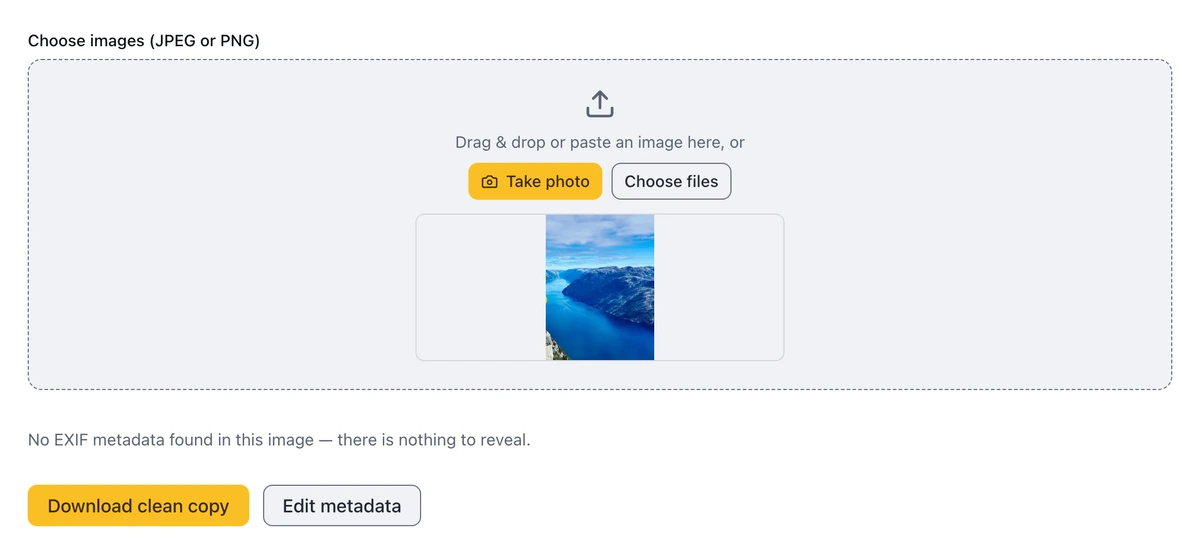
A cleaned copy loaded back into the viewer. No table, no GPS row, nothing left to read.
On a test photo, the viewer read out “iPhone 14 Pro” and a GPS location of 46.538056, 7.962222. Drop those numbers into any map and it’s a precise point in the Alps. Run the cleaned copy back through and the table is replaced by a line saying there is no EXIF metadata to reveal, and it is the same image, pixel for pixel.
A whole batch works differently. Select several images at once and the single-file table gives way to a Strip all metadata button with a progress bar behind it, then Download all (.zip) hands the lot back as cleaned-images.zip.
What the camera writes down
The hidden block is called EXIF, and phones stamp one into every shot: make and model, the lens, the exposure settings, the precise moment, whatever software touched the file later, and with location services on, the coordinates. It’s invisible on screen and it survives being emailed or dropped in a shared folder. That is how a holiday snap gives up your hotel, or a “for sale” photo maps your address.
Nothing gets re-encoded
Stripping here is a byte-range splice. On a JPEG the APP1 and APP13 segments are cut out and every other byte is copied across as it stood; on a PNG the eXIf, tEXt, iTXt, zTXt and tIME chunks go the same way. No decode, no re-save, so the picture cannot lose quality. Plenty of remove-EXIF sites re-save the photo to scrub it, and a JPEG gives up a little every time that happens.
Since the whole point here is a coordinate you’d rather not share, nothing gets sent anywhere: load the page, switch off your wifi, and the tool keeps working. Windows has a “Remove Properties” option and the iPhone share sheet can drop location too, but both are easy to forget and neither shows you what it took out.
Where this stops
- It cannot hide what’s in the picture. A street sign or a house number lives in the pixels, and removing EXIF leaves it exactly where it was.
- Screenshots usually have nothing to strip. No camera ever wrote anything into them.
- A clean copy loses captions and copyright as well. Stripping takes the IPTC and XMP blocks along with the EXIF, so a copyright line you added deliberately goes with them. If that matters, use the editor instead and clear only the GPS boxes.
- Editing is a JPEG job, and it rebuilds the Exif block from scratch. Camera maker notes and the embedded thumbnail do not survive that rebuild. The pixels do.
While you are tidying a photo up for sharing, you might also want to shrink its file size, or if it came off an iPhone as a .HEIC, convert it to JPG first so it opens everywhere.