A scanned page is a photograph of words. Your eye reads it. Your cursor slides straight through it, because there is nothing underneath those letters to catch on. You go to lift a reference number out of a receipt, and nothing highlights.
To extract text from a scanned PDF you have to run OCR across the picture and let a recognizer decide which shapes are characters. I built ToolsTray’s OCR to do exactly that. Since the first version of this post it has grown a second engine, so the first real decision on the page is now which one reads your document.
Classic or Sharp
Classic is Tesseract, the veteran open-source recognizer, running as WebAssembly. Six languages: English, Spanish, French, German, Italian, Portuguese. Tiny download, dependable on a flat clean scan, and it wants you to tell it which language it is looking at.
Sharp is a neural model, PP-OCRv6. Around 50 scripts, no language question, and it holds up on a page snapped at a slant. The cost is a model download of roughly 30 MB the first time you run it. A heavier variant called Sharp Pro sits under it and needs WebGPU.
The page picks before you touch anything. If your browser has WebGPU it selects Sharp; if not, it stays on Classic, because without a graphics card the neural engine falls back to the processor and finishes slower than Tesseract does.
Getting the text out of a scanned PDF
- Open OCR and drop your scan on it. Images and PDFs both, several at once, mixed if you want; the hint under the drop zone promises their text comes back as one document, in the order the queue lists them. Every page of a PDF gets rendered and read in turn.
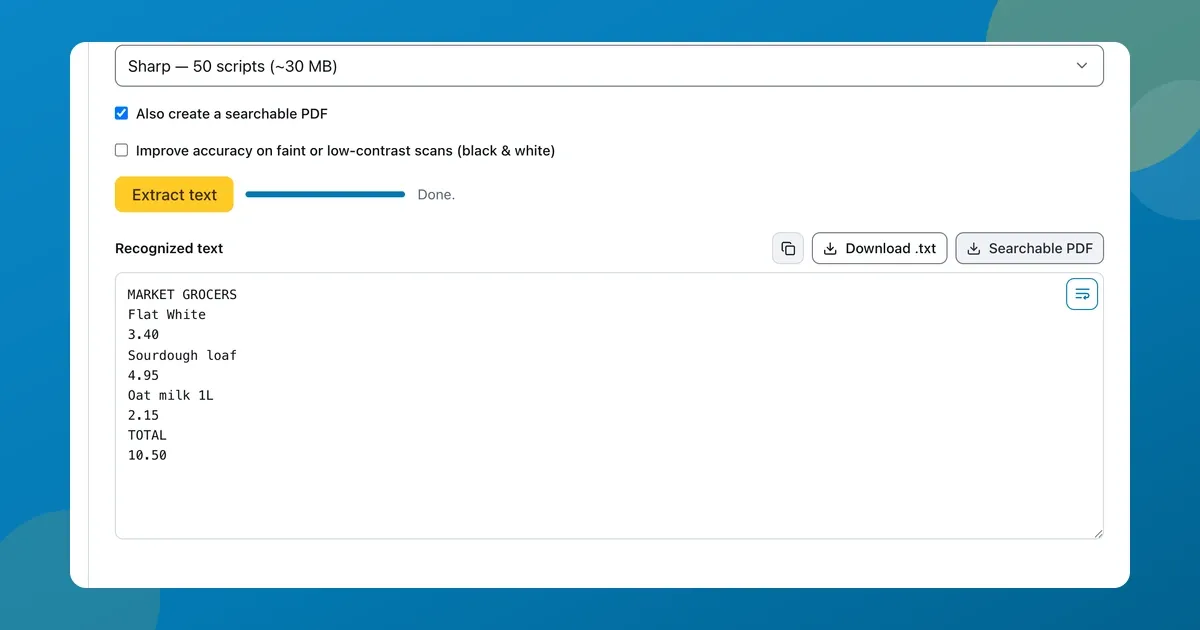
- Glance at Engine. If it landed on Sharp, there is no Language field on screen at all, because Sharp works the script out for itself. If it landed on Classic, set Language to match the document.
- Also create a searchable PDF ships ticked, so untick it if the plain words are all you want. Tick Improve accuracy on faint or low-contrast scans (black & white) when the original is grey or lit unevenly; it flattens every page to plain black on white before the recognizer sees it.
- Press Extract text. A Cancel button appears beside it while the run is going. Each file in the queue shows its own progress and finishes with a word count, and the status settles on “Done.”
The recognized text drops into a box below, with an icon button next to it labelled Copy recognized text, plus Download .txt and, if you left that box ticked, Searchable PDF.
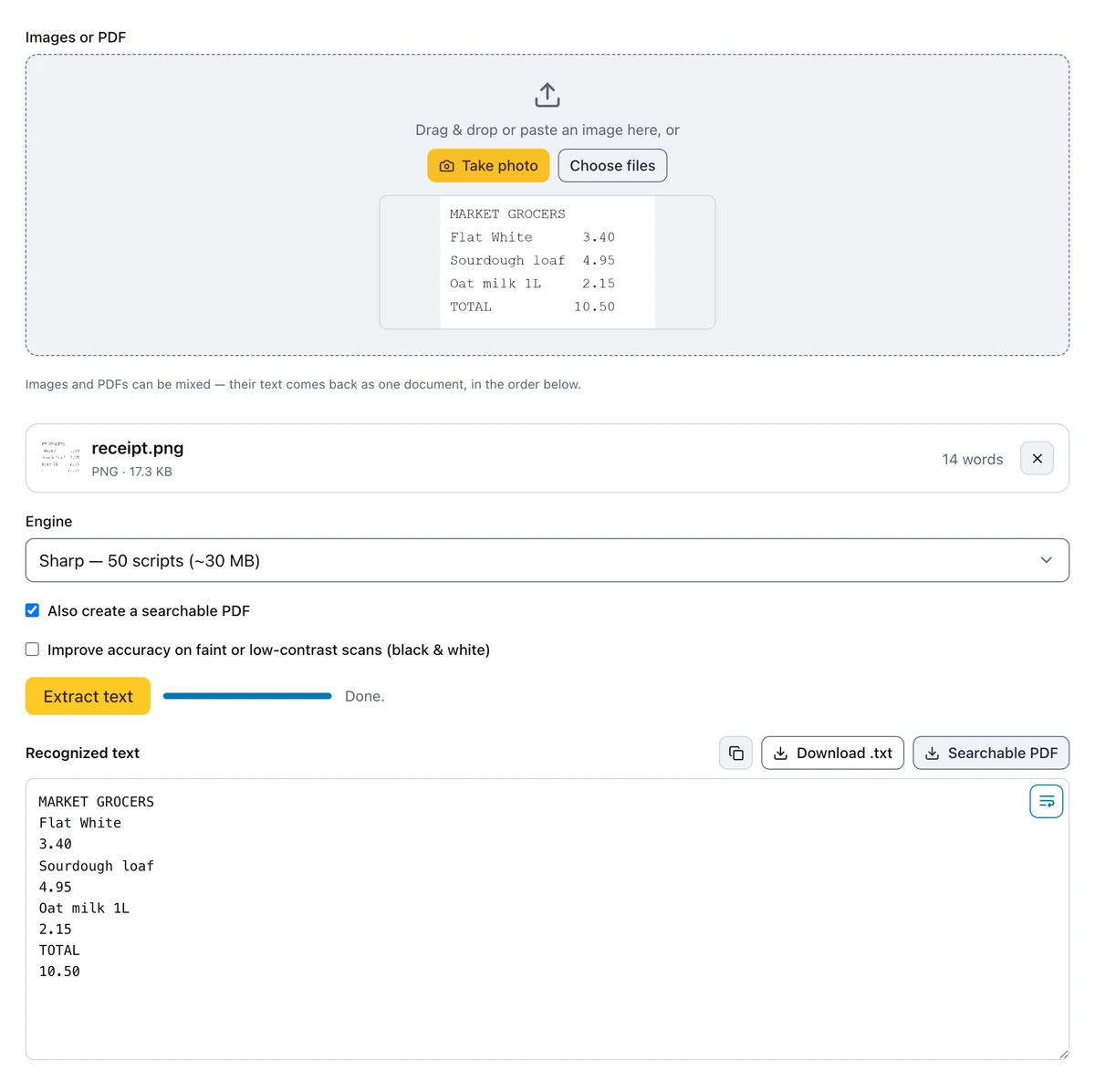
A scanned receipt read by the Sharp engine. No Language field, because Sharp works the script out for itself.
A receipt is an easy page. The harder test I ran was a scanned visit summary from a clinic, on the Classic engine, and the numbers still came back intact. “Blood pressure 128 / 82 mmHg.” “Resting heart rate 64 bpm.” The follow-up note under them. All of it text I could highlight and paste somewhere else.
Why the words were stuck in the first place
Your scanner writes a grid of coloured dots and stops there. Optical character recognition is the pass that studies that grid and turns letter shapes back into characters. The searchable PDF is the trick built on top. Your page still looks precisely as it was scanned, but a layer of recognized text now sits invisibly behind the image, and find-in-page works on a document that used to be a flat picture.
Look at what people actually feed to OCR. Medical letters. Bank statements. A photo of an ID, a signed contract, a page of exam notes. Recognition here happens inside the tab you already have open, and the only thing that crosses the network is the model file. Google Docs will OCR an image too and does a decent job of it, but the file goes to Google first.
Where it trips
- Clean printed text comes out close to perfect.
- Faint, grey or skewed scans lose accuracy fast, which is the whole reason the black and white toggle exists.
- Big display type and logos are a Classic weakness. On my sample it read every line of the body and ignored the large clinic name across the top. I have not put Sharp through that test, so treat it as a Tesseract observation.
- Handwriting is a maybe at best. Do not lean on it for a doctor’s scrawl.
After the text is out
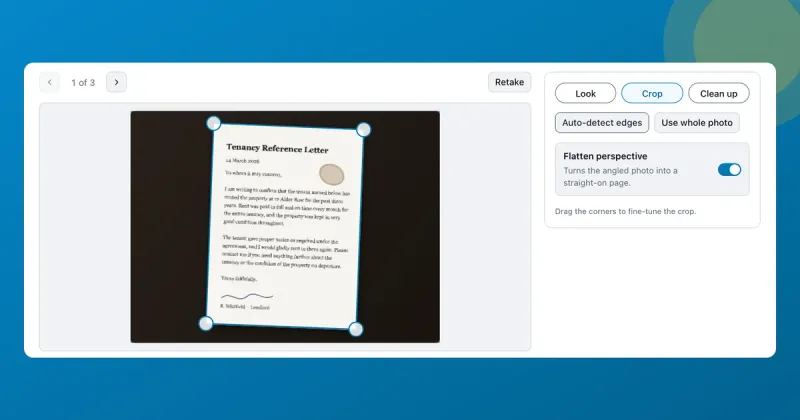
If the point was to change the document rather than read it, this is only the first half of the job. Editing what sits on the page is covered in editing text in a PDF without Acrobat, where a scanned page has to be recognized or covered with a fresh text box before you can touch a word of it. To type into a scanned form, drop text boxes onto it with the PDF filler. If your source is a blurry photo of a page, cleaning up the image first gives the recognizer better material.