The upload box says attach one PDF. What you have is eleven of them, because the office scanner decided every page of the contract deserved its own document. You can merge PDF files free on plenty of sites, and nearly all of them open by asking you to send that contract somewhere first.
For a school worksheet, who cares. For a signed agreement, an invoice with account numbers printed down the side, or a scan of your passport, it is an odd price to pay for what amounts to stapling. I built ToolsTray’s Merge PDF because I kept needing it for my own paperwork and got tired of handing it over.
Getting the order right
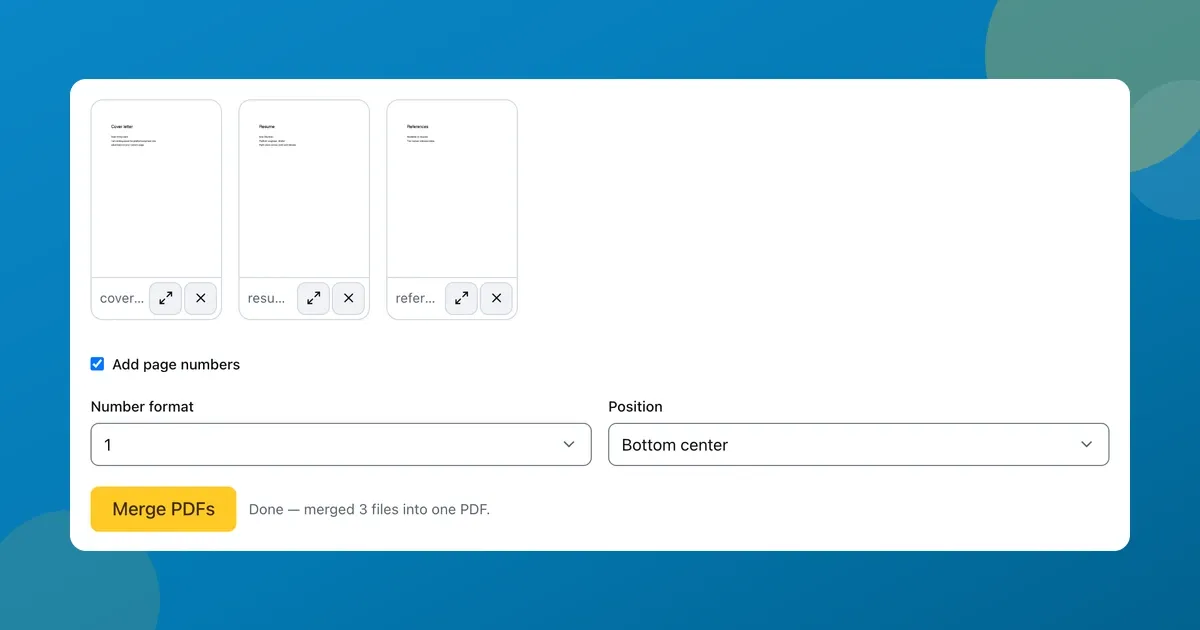
Drop your files under Add PDF files, or press Choose files and pick them. They come back as a grid of tiles, each one showing that PDF’s own first page rendered small. Which matters more than it sounds like it should. When the three files are called scan_002, scan_003 and scan_004, that little picture is the only thing telling them apart. Each tile carries Preview, which opens the first page full size, and Remove.
Order is tile order, read left to right along each row, the way you read a sentence. Drag one to move it. Or put focus on a tile and use the arrow keys, where Home throws it to the front and End sends it to the back; every move gets announced, like “Moved to position 3 of 5”.
Then press Merge PDFs. With fewer than two files it stops and tells you to add at least two PDF files to merge. With three, mine took about a second and the status line read “Done — merged 3 files into one PDF.” The download takes its name from whichever file ended up first, so contract.pdf plus annexure.pdf saves as contract-merged.pdf. The joining itself happens inside the page you already have open, and no copy of your document goes to a server at any point.
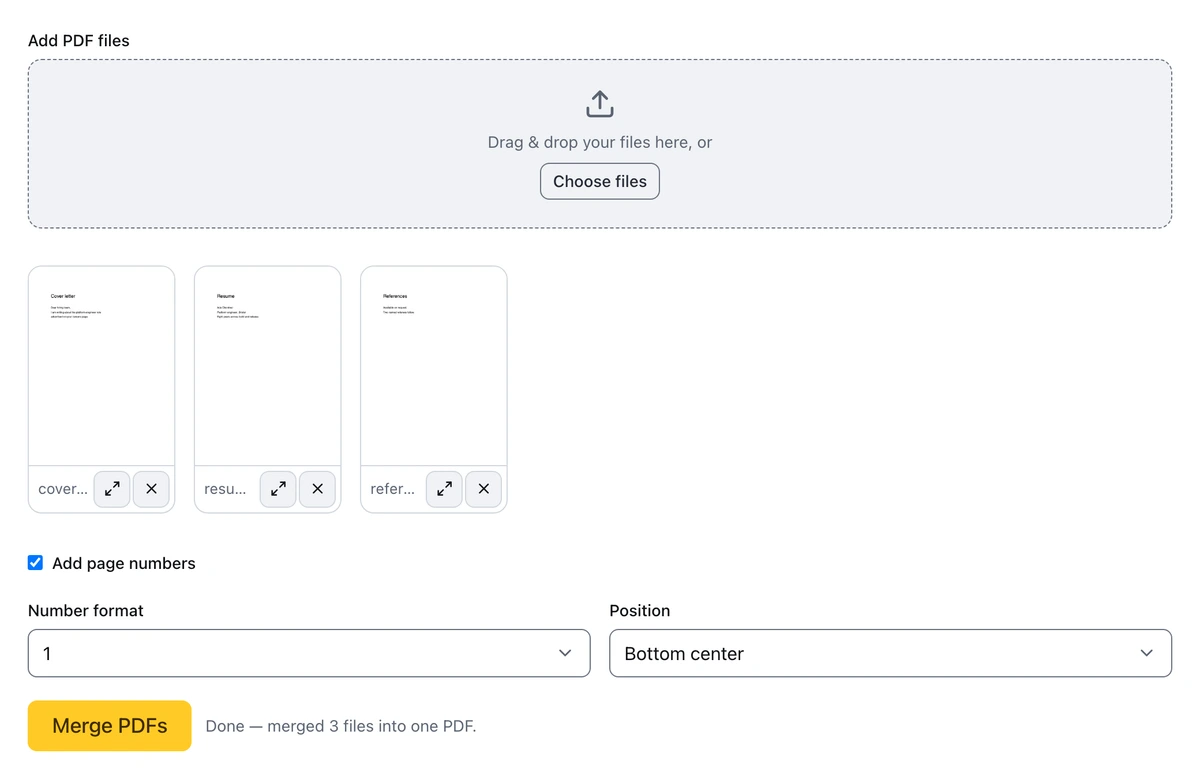
Three tiles, each showing its own first page, shuffled into order and merged.
Page numbers, if you want them
Tick Add page numbers and two more controls appear: Number format and Position. The format menu runs from a bare 1 through Page 1, 1 of N, 1 / N, and lower-case roman numerals. Position offers nine spots around the page, starting on bottom center.
Numbering is stamped after the join, so it counts up across the whole combined document instead of restarting at every seam. One thing to watch. If your source files already have numbers printed on them, you end up with two sets on the same page, which is the usual reason to leave the box alone.
Two things that catch people out
- A merged file is the sum of its parts. Pages get copied across rather than redrawn, so a 300 dpi scan stays a 300 dpi scan and the byte count adds up accordingly. If the result is now too fat to email, compress it afterwards.
- A password-protected PDF cannot be opened for copying, so the merge stops and shows you the error it got back. Unlock that file first, then add the unlocked copy here instead.
When a desktop app is the better call
Everything sits in memory at once, every source alongside the copy being assembled, and the only feedback while that happens is the word “Merging”. Hundreds of megabytes of high-resolution scans on a phone is where a browser tab runs out of room. For a job that size, PDFsam Basic is free and offline and will not blink at it. iLovePDF and Smallpdf cope fine too, though both want the upload back.
Once it is one file, you might want to black out something sensitive before it goes out, or fill and sign it.