The committee’s instructions were very specific: page numbers bottom-center, the cover page left unnumbered, and the first real page reading 1 rather than 2. My dissertation chapter was already a finished PDF. The numbering I’d set in Word had quietly vanished somewhere in the export, and the only machine I had open was a Mac, where Preview will happily rotate, annotate, and sign a PDF but cannot add a page number to save its life.
If you’ve ever needed to add page numbers to a PDF after it was made (a report, a thesis chapter, a scanned bundle, a contract someone sent over), you’ve probably hit the same three dead ends. Acrobat does it, but it’s a paid subscription for a thirty-second job. Preview, on a Mac, just can’t. Word can, but only if you still have the source document and don’t mind re-exporting, which is useless when the PDF is a scan or arrived from someone else. Which leaves the free online tools, iLovePDF and Smallpdf and the rest, and those all want the file uploaded before they’ll touch it.
Here’s how I do it instead: in the browser, in about a minute, free. I’ll use ToolsTray’s Add Page Numbers to PDF because I built it, but the part worth keeping is the method, especially the one setting that handles the cover-page rule everyone trips on.
If watching beats reading, here’s the run in under a minute, cover page skipped and all:
What “numbering a PDF” actually does
There’s no switch inside a PDF that turns page numbers on. The tool draws the number as a new layer of text on top of each page. Because it’s vector text it stays crisp, and the page’s existing words and graphics underneath are left untouched and still selectable. That’s also why it works on a scanned PDF that has no text layer at all: the number sits on top of the page image, the same way it sits on top of real text.
From dropped file to …-numbered.pdf
Start to finish, it looks like this:
- Drop your file into Add Page Numbers to PDF. It opens on your device, and a draft contract or an internal report is exactly the kind of file you want handled that way.
- Pick a format and a position. Format is
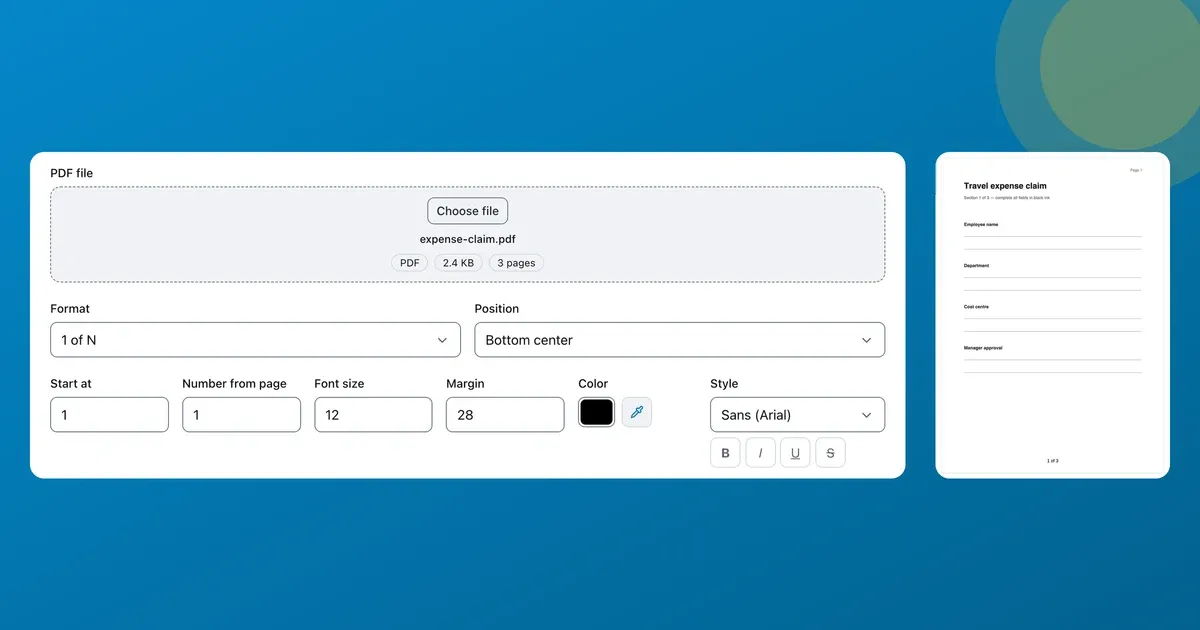
1,Page 1,1 of N,1 / N, or lowercase Roman numerals for front matter; position is any of nine spots, and bottom-center is the sensible default. - Set the font size and color so the numbers match the document instead of fighting it. 12 pt black suits most reports; go smaller and grey if the footer’s already busy.
- Watch the live preview redraw as you change anything, then Download. You get a fresh file named
…-numbered.pdf, and the original on your disk is left exactly as it was.
On my 24-page chapter that was the whole job: bottom-center, 1 of N, one click, every page stamped, and the text still selectable when I opened the result. Total time, including second-guessing the font size twice, was under a minute.
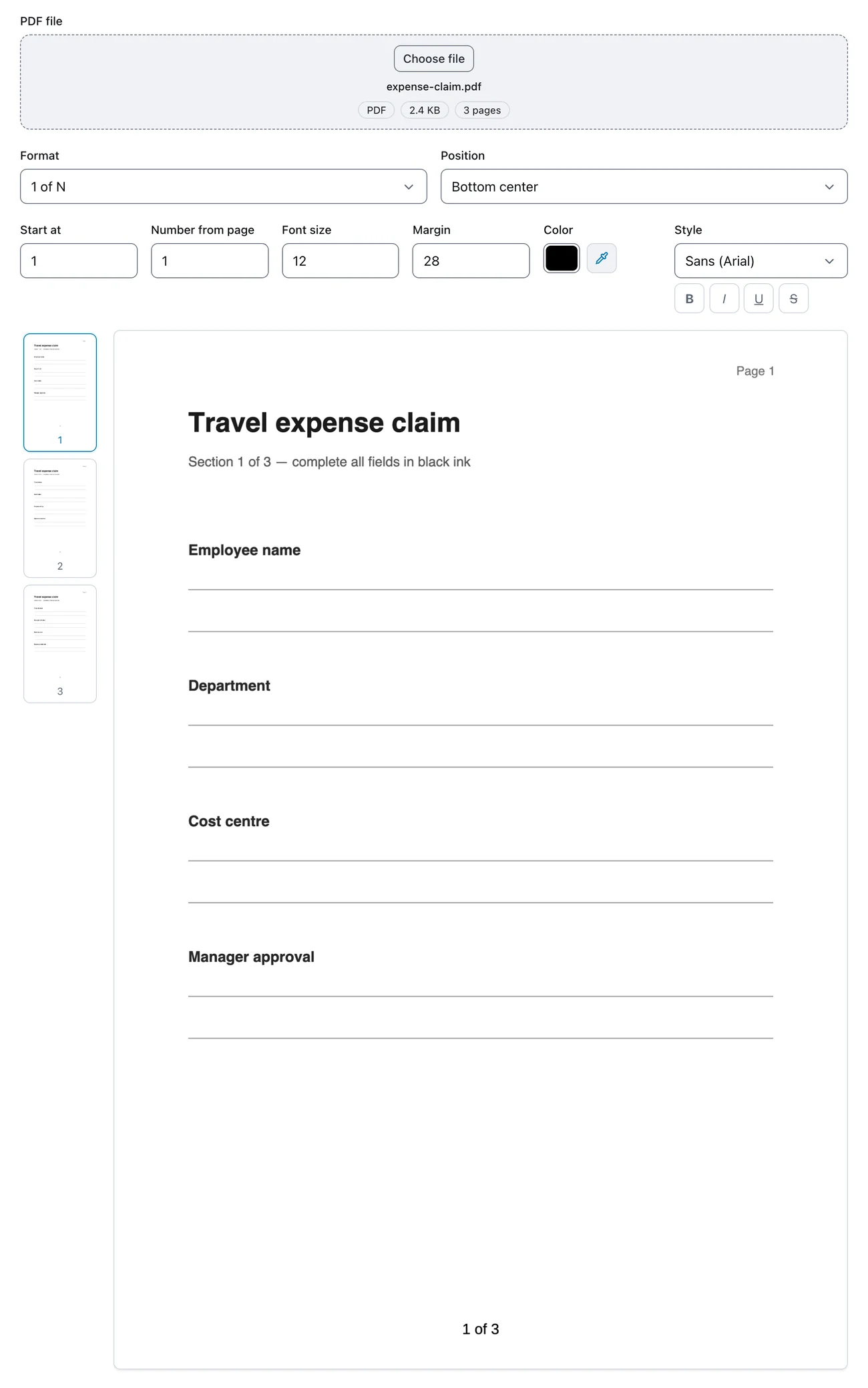
Numbering a sample form in the browser: “1 of 3” added bottom-center as a new layer, while the file’s own “Page 1” top-right is left untouched.
Skip the cover page (start numbering from page 2)
Now the setting the committee, and most front-matter rules, actually care about. Two fields work together:
- Number from page decides which page the numbering starts on. Set it to 2 and the cover stays clean.
- Start at decides what number that first numbered page shows. Set it to 1 so the second page of the file reads “1” instead of “2”.
That pair is the whole answer to “add page numbers but skip the cover,” and it’s the bit the upload sites tend to get wrong. Need front matter in Roman numerals and the body in plain digits? Number the front matter first as i, ii, iii…, then run the body as a second pass that starts where the real content begins. Start at is also how you continue a sequence across files: if a chapter picks up at page 47, start it at 47.
Where it won’t help
Two limits. First, it adds numbers; it can’t remove ones that are already there. If a PDF already has page numbers baked into the page, or scanned into the image, there’s no reliable way to strip them out. Instead the tool checks the footer and warns you, and you place the new numbers somewhere else or start them later so they don’t collide with the old ones. Second, it covers ordinary pagination and the core of Bates numbering (a fixed start, a consistent corner). It doesn’t add a case prefix or pad with leading zeros, so formal legal Bates stamping wants a dedicated tool.
Why “in your browser” is the point
For a meme PDF it makes no difference where the numbering happens. For a draft contract, an internal report, or a thesis nobody’s seen yet, it’s the entire question. A file you upload sits on someone else’s server under their retention policy. A file numbered on your own device has nothing to leak, because it never crossed the network. It’s also why there’s no signup, no watermark, and no page cap: your laptop does the work, so a 4-page memo and a 500-page report are the same single step. And if numbering tipped the file just over your email’s size limit, shrink it back under the cap the same way, locally.